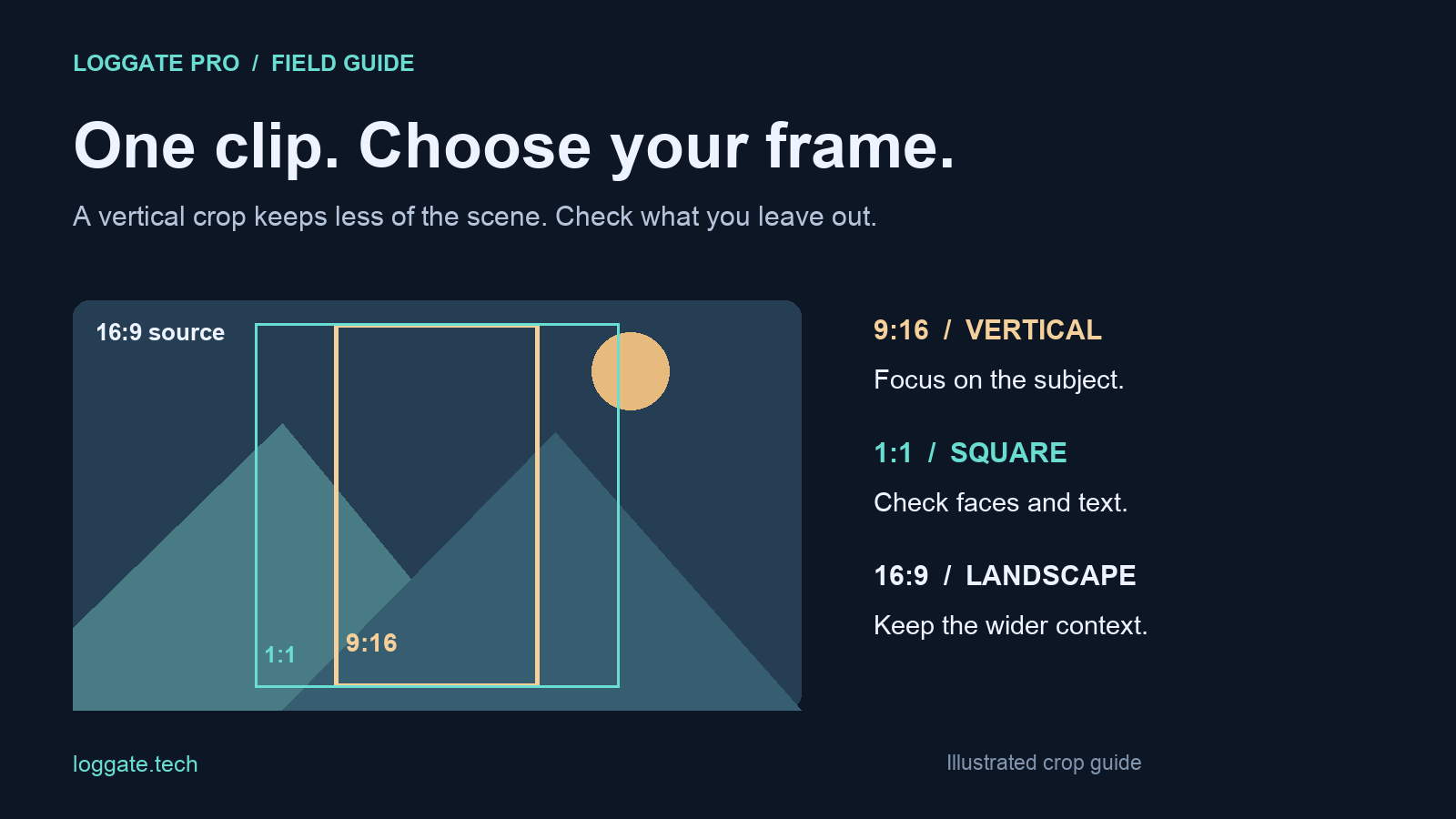
A landscape video can become a vertical clip, but the difficult part is deciding what stays in the frame. A 9:16 crop of a 16:9 recording keeps only about 32% of the original width when it uses the full source height. A face in the middle may work well; two people at opposite edges may not.
This guide walks through preparing vertical and square versions in LogGate Pro while keeping your original recording available for future edits.
Crop, pad or edit: choose the right approach
- Crop when the subject fits inside a narrower frame and the surroundings are expendable.
- Pad in a video editor when the whole landscape composition matters. Borders or a designed background preserve information a crop would remove.
- Edit shot by shot when speakers alternate, a subject moves across the frame, or a screen recording has important text near both edges.
Automatic cropping is a useful starting point, but it cannot decide every storytelling tradeoff. Review the whole exported clip, not just its opening frame.
Make 9:16, square and landscape versions in LogGate Pro
- Add your source clip. Use the original recording or a high-quality edited master rather than a copy saved from a messaging app.
- Select the aspect ratios you need. Choose 9:16 for a vertical composition, 1:1 for square, and 16:9 for landscape. These are composition choices, not a claim that every destination requires one particular format.
- Choose Smart crop or Center crop. Smart crop uses face detection and visual saliency to choose framing. Center crop uses a centered window. Neither removes the need to check subjects near the edges.
- Set color conversion for the source. Enable Color Transform → Rec.709 when converting supported Log or HDR material to SDR. For an already graded SDR master, avoid unnecessary color changes. Our HDR-to-SDR guide explains that decision.
- Choose an output codec. H.264 MP4 is a practical compatibility choice for delivery. Use the quality and size your destination needs; a larger export cannot restore detail removed by a crop.
- Export and review every version. Check faces, hands, products, signs and any text already embedded in the video.
Understand the resolution tradeoff
Consider a 3840×2160 landscape source. A full-height 9:16 crop is approximately 1215×2160 before output scaling. That can supply a 1080×1920 vertical image without enlarging the cropped pixels. Starting with a 1920×1080 source gives a much smaller crop: approximately 608×1080. Exporting it at a larger size does not recreate captured detail.
These numbers describe crop geometry, not a promise about every export setting. If the source is soft, test a short sample before committing to a larger workflow. LogGate Frame is an upscaling option, but no upscaler can guarantee faithful recovery of details the camera never captured.
Add captions only after checking the composition
LogGate Pro includes a Burn-in captions option that transcribes speech on device and draws captions into the export. Burned-in text is part of the picture, so review names, specialist terms, timing and readability before posting. If corrections or precise placement are needed, finish those in your editing workflow before delivery.
Keep important text away from the edges and check the destination’s posting preview. Interface controls can cover parts of the image. Keep a caption-free master too, so you can make another version without text already baked into it.
Finish on iPhone or iPad
After processing, use Save to Photos to add completed exports to your library, granting Photos access when requested. Open the correct ratio in the destination app and inspect its preview before publishing. Saving a clip to Photos does not post it to a social account.
See LogGate Pro for conversion and multi-ratio exports, or explore the Pro + Frame bundle if you also need upscaling.