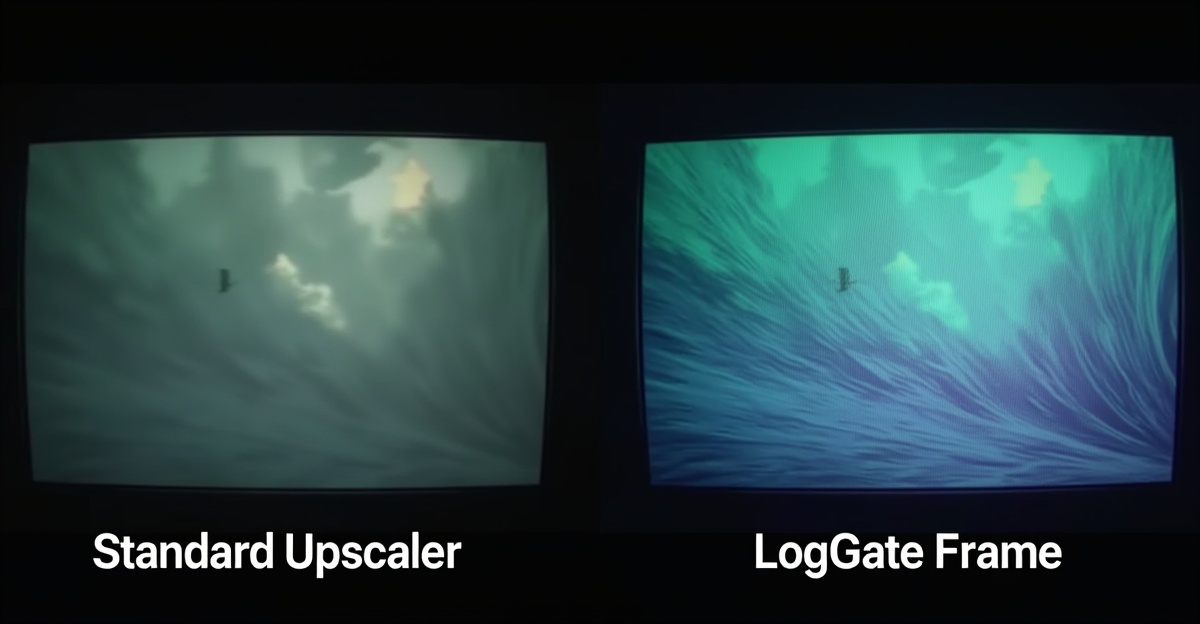
If you shoot Apple Log on iPhone Pro and want to upscale before color grading, you’ve probably run into this problem: the upscaled footage doesn’t behave correctly in Final Cut Pro or DaVinci Resolve. Shadows are crusty, highlights are clipped, and your LUT isn’t matching the way it should.
This isn’t a bug in your NLE. It’s a fundamental mismatch between how video upscalers work and what Apple Log footage contains.
Why Standard Upscalers Break Apple Log
Standard video upscalers — even the best ML-based ones — are designed for display-ready content. They assume the pixel values they’re processing represent final output luminance, encoded in a standard gamma curve like Rec.709 or sRGB.
Apple Log footage is completely different. The pixel values are encoded in a log curve with massive latitude well above “display white.” That headroom is where your highlights live — the sky, the specular highlights on glass and skin, the HDR range that makes iPhone Pro footage look cinematic.
When a standard upscaler processes Apple Log footage without understanding this:
- HDR headroom gets clipped — values above the notional display ceiling are cut permanently, destroying the dynamic range that makes Log worthwhile
- LUT data gets baked in — many upscalers apply a mild tone response curve that has no visible effect on display-ready content but permanently modifies the raw log values
- Color metadata gets stripped — the color space and transfer function tags (telling your NLE “this is Apple Log 4”) often don’t survive the transcode
The result: you bring your footage into FCP or Resolve expecting to apply a LogGate Pro conversion or your own LUT to clean Apple Log, and it doesn’t work. The grade is wrong before you’ve touched anything.
The Right Approach: Separate Upscaling from Color Encoding
The fix is to treat the upscaling pipeline correctly — separate the “increase the resolution” step from the “preserve the color encoding” step.
The correct sequence:
- Extract and store the Log/HDR color metadata from the source clip
- Normalize the pixel values to a linear or gamma range that the upscaler can process correctly
- Apply the upscaling algorithm to the normalized version
- Reattach the original color data to the upscaled output
This is the approach takes. It uses Apple’s MetalFX Upscaling framework (the same GPU upscaling technology Apple uses in their games) in a two-pass process that preserves your Apple Log metadata end-to-end.
What You Get
With a color-safe upscaling workflow:
- 1080p Apple Log in → 4K-equivalent Apple Log out
- All HDR headroom intact — no clipping, no LUT baking
- Color space and transfer function metadata preserved in the container
- Your downstream color grade works exactly as if you shot in native 4K Log
When Does This Matter?
This matters most when you’re:
- Delivering 4K projects shot on iPhone 15 or 16 Pro (which record Apple Log at up to 1080p or 4K depending on settings)
- Upscaling iPhone footage to match 4K footage from a larger camera in a multicam edit
- Preparing footage for HDR delivery (HDR10, Dolby Vision) where you need the full log range intact
- Using a custom LUT pipeline where any pre-processing would corrupt your grade
If you’re doing display-ready delivery where you don’t plan to color grade, a standard upscaler is fine. But for any professional workflow where the color grade happens after upscaling, you need a tool that understands Log.
LogGate Frame
It works as a companion to — use Frame to upscale first, then LogGate Pro to convert Apple Log to Rec.709 for delivery, or bring the upscaled Log footage directly into your NLE for grading.
The $19.99 intro price is active through July 2026.