Multicam iPhone shoots used to break down in post for one simple reason: sync. You could capture clean Apple Log footage, but if your clips landed without reliable timecode, the edit turned into manual waveform matching, hand-built sync points, and a lot of wasted time.
That changed when Apple added built-in Timecode options to Final Cut Camera 2.0 for iPhone workflows. Combined with Apple Log 2 on iPhone 17 Pro and iOS 26 support for advanced capture features, you can now shoot material that behaves much more like a real pro camera pipeline.
This guide explains what Final Cut Camera timecode actually does, when it matters, how to set it up, and where LogGate Pro fits once your footage leaves the phone.
Quick answer: what does Final Cut Camera timecode do?
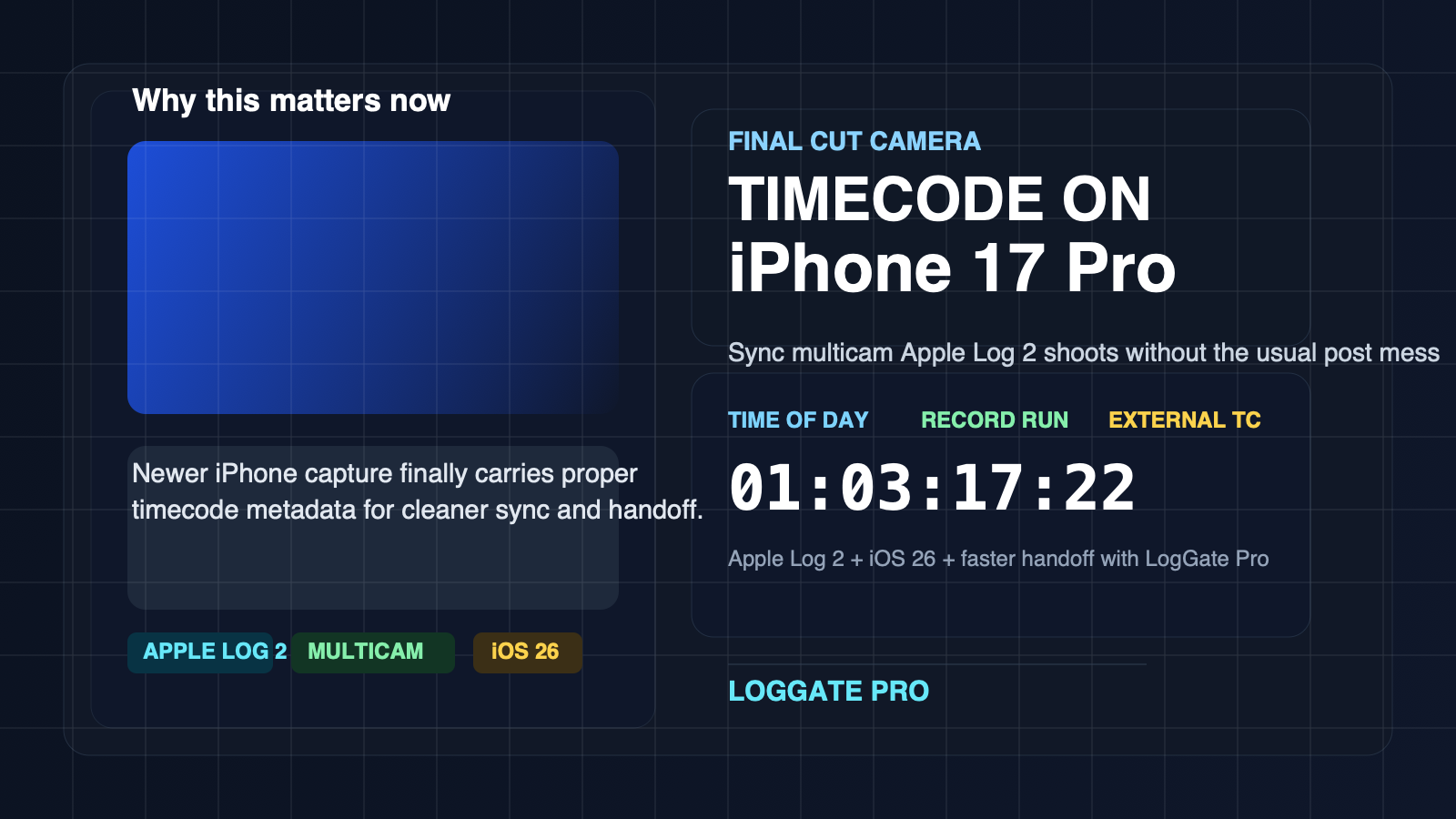
Final Cut Camera lets you record clips with timecode metadata so your footage is easier to identify, sort, and sync in post. Apple now supports three useful modes:
- Time of Day for matching devices to a shared clock.
- Record Run for incrementing timecode only while recording.
- External timecode for productions using dedicated sync hardware.
If you are shooting interviews, live performances, events, or any two-camera iPhone setup, this matters immediately. Your clips come into post with structure instead of chaos.
Why this is relevant right now
Apple’s current iPhone filmmaker stack is finally coherent. In Apple’s September 9, 2025 announcement for Final Cut Camera 2.0, the company added Apple Log 2, ProRes RAW, genlock, and timecode support for the new iPhone 17 Pro line. Apple’s support documentation also notes that some timecode workflows require iOS 26, which makes this a practical 2026 topic rather than a stale feature list.
In other words: filmmakers now have a phone camera workflow that can capture flatter footage for grading and make multicam sync less painful at the same time.
Who should care about Final Cut Camera timecode?
- Solo creators using two iPhones for talking-head and B-roll coverage.
- YouTubers and educators recording host + overhead + side angle setups.
- Indie crews mixing iPhone 17 Pro with larger cameras.
- Editors who want less manual sync work before they even start color.
If you only shoot single clips for social and cut them in one app, timecode is optional. If you touch multicam, interviews, or handoff workflows, it is a real upgrade.
What you need
- iPhone 17 Pro or iPhone 17 Pro Max if you want Apple Log 2 and the newest pro capture features.
- Final Cut Camera 2.0 or later.
- iOS 26 for the full timecode feature set Apple documents.
- Final Cut Pro, DaVinci Resolve, or another NLE that can read and organize timecode metadata cleanly.
- LogGate Pro if you want a faster Apple Log or Apple Log 2 conversion step before editorial delivery.
Best timecode mode for each shooting scenario
1. Time of Day: best for lightweight multicam setups
If you are running two or more iPhones and want the easiest setup, use Time of Day. This works well when every device has an accurate clock and you are starting takes in roughly the same production window.
Best for:
- Interviews
- Podcast video
- Behind-the-scenes coverage
- Two- or three-angle creator shoots
2. Record Run: best for single-camera discipline and clean clip IDs
Record Run advances timecode only while the camera is actively recording. It is useful when you want clips to carry a straightforward sequential record history, especially in more controlled single-camera sessions.
Best for:
- Product demos
- Single-camera scripted takes
- Shoots where clip management matters more than cross-device sync
3. External timecode: best for real production environments
If you are integrating iPhone 17 Pro into a larger set, external timecode is the serious option. It gives the phone a place in a proper sync ecosystem instead of treating it like a separate consumer device.
Best for:
- Mixed-camera productions
- Live performance capture
- Commercial shoots
- Narrative productions using iPhone as B-cam, crash cam, or gimbal cam
How to set up Final Cut Camera timecode
- Open Final Cut Camera on your iPhone.
- Go to Settings or the relevant capture preferences panel.
- Enable Timecode.
- Choose Time of Day, Record Run, or external timecode.
- If you are also shooting for grade, set your codec and color pipeline to Apple Log 2 in ProRes or HEVC as appropriate.
- Before rolling on a multicam shoot, verify that every device is using the intended timecode mode and frame rate.
Apple also lets you preview Apple Log and Apple Log 2 footage with a LUT while recording, which is worth enabling so the crew is not judging a flat log image as if it were the final look.
A practical iPhone 17 Pro multicam workflow that works
On set
- Lock frame rate, shutter, white balance, and resolution across every iPhone.
- Use the same timecode mode on every device.
- Record in Apple Log 2 when you need grading latitude.
- Use a clap or audible sync cue anyway. Metadata is great; redundancy is better.
In ingest
- Offload the original media immediately.
- Split your footage into two lanes: camera originals and editorial deliverables.
- Keep the untouched originals as your source of truth.
In post
This is where the workflow becomes faster than older iPhone pipelines.
If your editor or client does not want to deal with flat Apple Log footage, run the clips through LogGate Pro first and create clean Rec.709 deliverables while preserving filenames and an organized handoff structure. That gives your team viewable footage for editorial, review, or social while the original log masters remain available for finishing.
For many small teams, the winning setup looks like this:
- Shoot Apple Log 2 with timecode in Final Cut Camera.
- Archive the original camera files.
- Create normalized editorial copies in LogGate Pro for quick handoff.
- Sync and cut in Final Cut Pro or Resolve using the timecode-aware media.
- Return to the original high-quality media for the final grade if needed.
Where LogGate Pro fits in this workflow
Timecode solves one problem: clip organization and sync. It does not solve the equally common issue that many collaborators still do not want to review, rough cut, or social-edit flat log footage.
That is where LogGate Pro is useful:
- Convert Apple Log and Apple Log 2 footage into Rec.709 quickly.
- Export client-friendly or editor-friendly deliverables without a full grading session.
- Batch process multiple clips after a multicam shoot.
- Create faster handoff media for teams that care more about speed than finishing latitude in the first pass.
If you are new to the conversion side, see our guides on Apple Log 2 on iPhone 17 Pro and turning flat iPhone Log footage into broadcast-ready video.
Common mistakes to avoid
- Mixing frame rates. Timecode will not rescue sloppy frame rate mismatches.
- Leaving white balance on auto. Sync is only one part of a multicam job; color consistency still matters.
- Assuming every app handles Apple Log 2 gracefully. Many review and social workflows still prefer normalized footage.
- Skipping a backup sync cue. A clap, slate, or waveform marker is still worth the extra second.
FAQ
Does Final Cut Camera timecode make multicam syncing automatic?
It makes syncing cleaner and faster, but you still need good production discipline: matched frame rates, stable device clocks, and organized media handling.
Do I need iPhone 17 Pro for timecode?
Not for every basic timecode use case, but you do need iPhone 17 Pro or Pro Max if you want the full Apple Log 2 workflow Apple positions as part of its newest pro video stack.
Should I shoot Apple Log 2 in HEVC or ProRes?
Use HEVC for lighter everyday capture and ProRes when image robustness matters more than storage efficiency. The right choice depends on your finishing pipeline and how much latitude you need later.
Can I still use LogGate Pro if I plan to do a final grade later?
Yes. Many teams use LogGate Pro to create fast viewing or editorial files while keeping the original log media archived for finishing.
Bottom line
Final Cut Camera timecode on iPhone 17 Pro is one of the most practical workflow upgrades Apple has made for mobile filmmakers. It is not flashy, but it removes one of the most expensive forms of friction in post: manual sync cleanup.
Pair that with Apple Log 2 capture and a fast conversion tool like LogGate Pro, and you get a phone-based production workflow that is finally credible for serious multicam work.