
Apple Log 2 is the second-generation log gamma curve Apple ships in the iPhone 17 Pro camera system, and it is the cleanest signal Apple has ever exposed to colourists. If you shoot for grade — for delivery to a streaming platform, for an HDR master, or for high-end finishing — Apple Log 2 gives you more usable highlight roll-off and a wider colour gamut to work with in post. This post unpacks what Apple Log 2 actually is, which devices capture it, how it differs from the original Apple Log, and the fastest way to get a graded master out of it.
What is Apple Log 2?
Apple Log 2 is a log-encoded transfer function and colour space designed to preserve the full dynamic range of Apple’s Pro cameras for post-production grading. Like every log curve — S-Log3, V-Log, Log-C — it stores luminance non-linearly so that many stops of scene information fit into a 10-bit (or higher) container without crushing shadows or clipping highlights. Apple has positioned Apple Log 2 as a wider-gamut, more grading-friendly successor to the original Apple Log, captured into ProRes or HEVC on iPhone 17 Pro.
Two practical consequences for filmmakers:
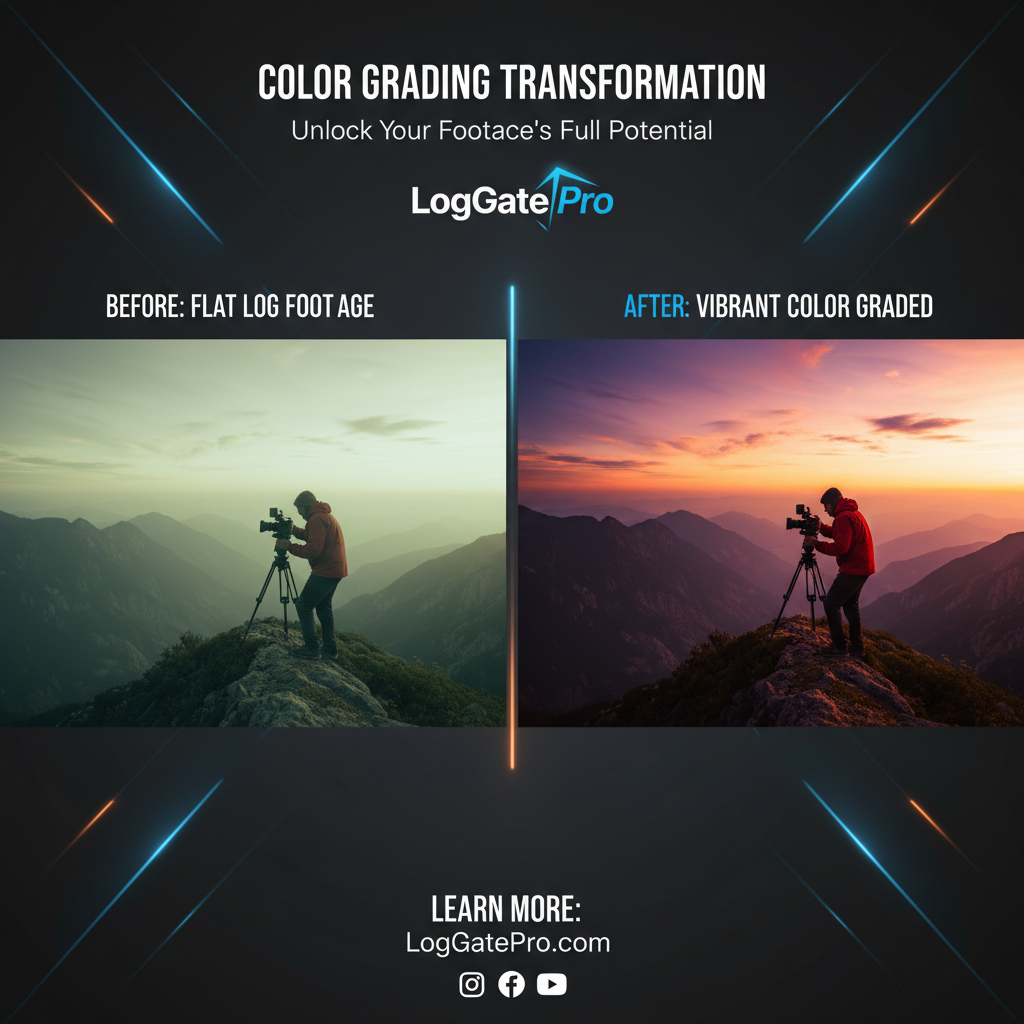
- Footage is intentionally flat on the monitor. A correct Apple Log 2 LUT is required to preview the image as the colourist will see it.
- Exposure discipline matters more than ever. Log lives or dies by middle-grey placement. Apple Log 2 widens the safety net but does not replace careful metering.
Apple Log 2 vs. Apple Log: what changed?
Apple introduced the original Apple Log with iPhone 15 Pro in 2023 as a single, fixed log curve aimed at ProRes shooters who wanted real grading latitude on a phone. Apple Log 2 is the successor that Apple ships with the iPhone 17 Pro and Pro Max. Three differences matter on set and in post:
| Attribute | Apple Log | Apple Log 2 |
|---|---|---|
| Generation | First-generation curve | Refined curve with smoother highlight roll-off |
| Colour gamut | First-generation Apple Log gamut | Wider gamut for richer grading latitude |
| Shipping device | iPhone 15 Pro / 15 Pro Max | iPhone 17 Pro / 17 Pro Max |
| Best output | Rec.709, HLG with care | Rec.709, HLG, PQ HDR masters |
The headline takeaway: Apple Log 2 is not just a tweak. It is a meaningful step up in colour quality for the iPhone Pro line and gives editors and colourists more room to shape an image.
Which devices capture Apple Log 2?
Drawing from Apple’s Final Cut Camera 2.0 announcement:
- iPhone 17 Pro and iPhone 17 Pro Max capture Apple Log 2 in ProRes or HEVC, with what Apple describes as “an even wider color gamut” than the original Apple Log.
- iPhone 17 Pro and Pro Max are “the first smartphones capable of capturing ProRes RAW” — internal capture is supported; an external SSD is not required for the codec itself.
- iPhone 17 Pro and Pro Max add Genlock for frame-synchronised multi-camera shoots — a first on a phone, and a serious unlock for narrative and music-video work.
Older iPhone Pro models (iPhone 15 Pro, iPhone 16 Pro) capture the original Apple Log, not Apple Log 2. If you mix devices on a multi-cam shoot, plan to grade Apple Log and Apple Log 2 streams separately and match in post.
For frame-rate ceilings, front-camera capabilities, and any device-specific caveats not covered above, defer to Apple’s iPhone 17 Pro tech-spec page before locking your shoot plan.
On-set tips for shooting Apple Log 2
Apple Log 2 is generous, but log shooters still get burned by a few avoidable mistakes:
- Expose for middle grey, not the histogram. Use a grey card and your camera’s false-colour view to land middle grey in the recommended log zone — not a Rec.709 value.
- Use a viewing LUT. Apple ships an Apple Log 2 → Rec.709 monitoring LUT for Final Cut Pro and Final Cut Camera. Apply it to your monitor pipeline so the talent and director see a normalised image.
- Lock white balance. Auto-WB drift is the single fastest way to make a log master un-gradeable. Pick a Kelvin value, lock it, and let post handle creative shifts.
- Record ProRes externally for keepers. HEVC Apple Log 2 internal is fine for B-roll and social cuts. For hero scenes, route ProRes (and ProRes RAW where supported) to a fast external SSD over USB-C.
- Slate every clip. Colour-managed pipelines reward clean metadata. A digital slate plus an audible reference saves hours in conform.
Bringing Apple Log 2 footage into your edit
NLE support for Apple Log 2 is moving fast. The cleanest path lives inside Final Cut Pro: the FCP 11.2 release notes add the Apple Log 2 LUT so editors can “edit and play back your Apple Log 2 footage with the vibrancy of the original scene.” Final Cut Pro for iPad 2.3 ships the same LUT. Apple’s general guide to applying LUTs in Final Cut Pro walks through the inspector workflow.
For everything else, verify the version in your facility before shoot day:
| NLE | Apple Log 2 ingest path | Notes |
|---|---|---|
| Final Cut Pro 11.2+ (Mac) | Apple Log 2 LUT (built-in) | Shipped 2025-09-19. Easiest path on macOS. |
| Final Cut Pro for iPad 2.3+ | Apple Log 2 LUT (built-in) | Pairs with Final Cut Camera 2.0 capture. |
| Final Cut Camera | Native capture + monitor LUT | Capture and viewing LUT in one app on iPhone 17 Pro. |
| DaVinci Resolve | Color Space Transform | Apply a CST from Apple Log 2 to your working space. |
| Adobe Premiere Pro 2025+ | Auto-detect log media | Premiere’s colour management auto-detects iPhone log into your sequence’s working space. |
| Avid Media Composer | Cube LUT (Source Settings) | Source-side colour transform; no native Apple Log 2 IDT in mainline shipping versions at time of writing. |
| CapCut / mobile editors | Cube LUT only | Treat as Rec.709 deliverable target. |
If your NLE does not yet ship a native Apple Log 2 input transform, the safe path is a pre-conform pass: bake the Apple-supplied LUT (or a custom one) into a Rec.709, Rec.2020 / HLG, or PQ master, then bring that into your edit alongside any other camera streams. Our iPhone Log to Rec.709 walkthrough covers that pre-conform step end to end.
From Apple Log 2 to deliverable: the LogGate Pro workflow
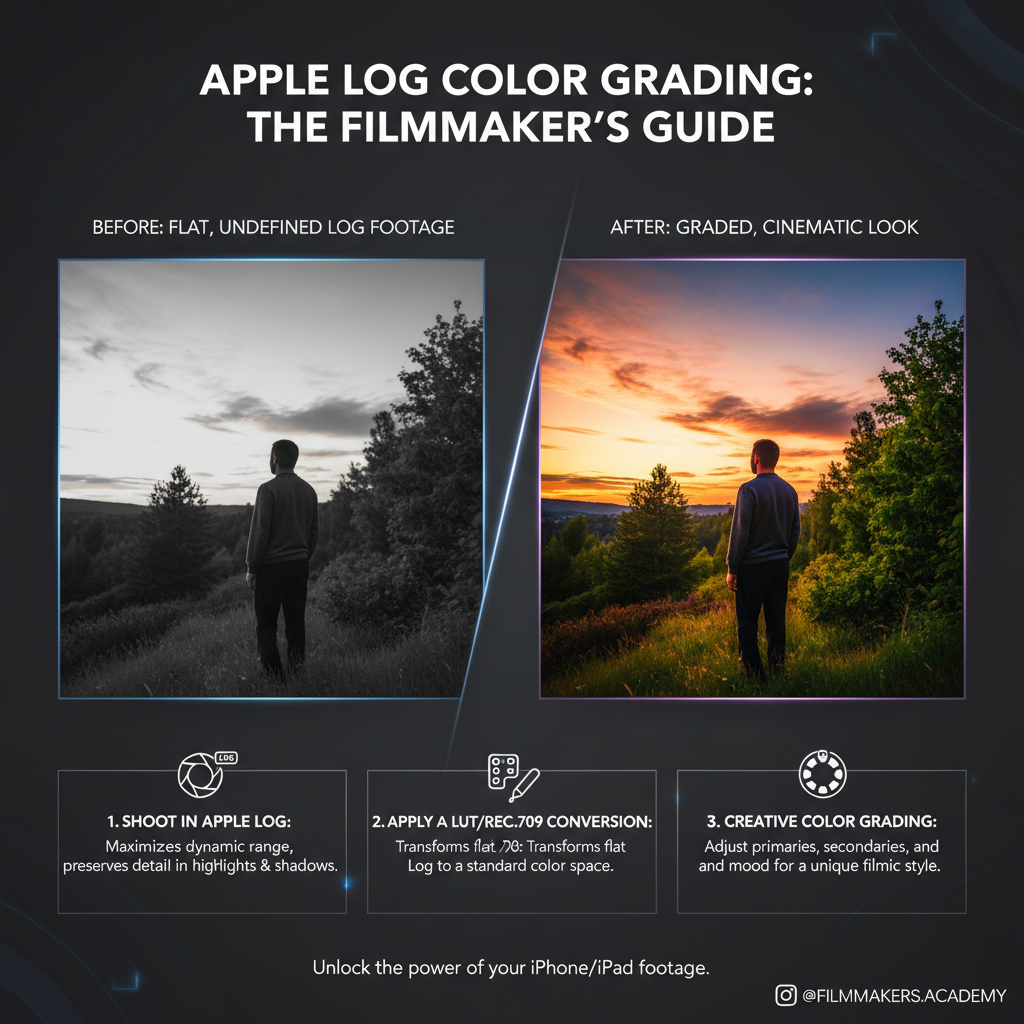
LogGate Pro is built for this exact step. v1.1 — live in the App Store on iOS, iPadOS, and macOS since April 2026 — adds iPhone 17 Pro sensor auto-detection, an Apple Silicon hardware pipeline, and native Apple Log 2 ingest alongside Apple Log, ProRes, and HEVC sources. If you’re new to the Apple Log family, our Apple Log conversion feature guide covers the underlying workflow in detail; the Apple Log 2 path mirrors it.
The flow is intentionally simple:
- Drop in Apple Log 2 clips from your iPhone 17 Pro or external SSD. LogGate Pro reads ProRes, ProRes RAW, and HEVC Apple Log 2 directly.
- Choose your output: Rec.709 SDR, Rec.2020 HLG, or PQ HDR. Pick a built-in LUT or load any Cube LUT you already trust. Not sure which container fits the deliverable? Our Rec.709 vs HLG output guide walks through it.
- Bake. LogGate Pro renders a clean, NLE-ready master with the LUT permanently applied so editors and colourists never see flat log on their timeline by accident.
- Hand off. Output sits beside your originals in the format your facility expects — ProRes for finishing, H.264 / H.265 for client review, ProRes Proxy for offline. For multi-clip shoots, see our batch processing workflow tips.
Why bake at all? Because mobile review tools, VFX vendors, agencies, and social teams almost never want raw log. A correctly graded conversion at ingest is the difference between a one-day post turnaround and a week of “is this what it’s supposed to look like?” emails.
Frequently asked questions
Is Apple Log 2 the same as Apple ProRes Log?
No. Apple Log 2 is the gamma + colour-space encoding. ProRes is a codec family that can carry Apple Log 2 (or Rec.709, or Rec.2020) as its image data. You can record Apple Log 2 inside ProRes 422, ProRes 422 HQ, or ProRes RAW.
Can I shoot Apple Log 2 in HEVC instead of ProRes?
Yes. iPhone 17 Pro supports HEVC Apple Log 2 internally for everyday work; ProRes is reserved for higher-bit-rate captures.
Will Apple Log 2 work on my iPhone 15 Pro or iPhone 16 Pro?
At the time of writing, Apple Log 2 is documented only on iPhone 17 Pro and iPhone 17 Pro Max. Earlier Pro models capture the original Apple Log.
Do I need ACES to grade Apple Log 2?
No. ACES is one option for facilities already running an ACES pipeline. You can also work directly with Apple’s Rec.709 / Rec.2020 conversion LUTs, or use third-party LUTs and creative transforms.
What LUT should I use to view Apple Log 2 on set?
Start with Apple’s official Apple Log 2 → Rec.709 monitoring LUT, available for Final Cut Pro and Final Cut Camera. Most professional monitors accept .cube uploads; load it into the LUT box rather than a creative transform.
Does LogGate Pro support Apple Log 2 on iOS?
Yes. LogGate Pro v1.1 ships native Apple Log 2 ingest on iOS, iPadOS, and macOS. The same LUTs and output formats are available across platforms.
Can I mix Apple Log 2 and Apple Log on one timeline?
Yes, but apply the correct input transform per clip. Mixing the two without per-clip colour management produces colour drift — especially in skin tones and warm highlights.
Is Apple Log 2 future-proof for HDR delivery?
It is well-suited to HLG and PQ delivery thanks to its highlight roll-off and wider colour gamut. Render once from your Apple Log 2 master, deliver to multiple specs (SDR, HLG, PQ), and avoid re-shooting.
Get the workflow on macOS, iPadOS, and iOS
LogGate Pro turns Apple Log 2 from “looks broken on my monitor” into a graded, deliverable master in a single render. v1.1 is live in the App Store now — the same one-click conversion runs on your iPhone 17 Pro for review cuts and on your Mac for final masters.
Download LogGate Pro on the App Store →
For workflow questions or partnership enquiries, reach the team at info@loggate.tech.