 LogGate
One question keeps coming up across filmmaking communities, Discord servers, and DaVinci Resolve forums: “I shot on iPhone in Apple Log but Resolve on Windows won’t recognize the files — what am I doing wrong?”
You’re not doing anything wrong. The problem is structural. Here’s exactly why it happens and the workflow that fixes it.
Why Apple Log Breaks on Windows
Apple Log footage from iPhone 15 Pro and later records in ProRes — specifically ProRes 422 HQ or ProRes 4444. ProRes is Apple’s proprietary intermediate codec and it’s genuinely excellent: it’s visually lossless, edit-friendly, and preserves the full log curve with no banding. The problem is the “Apple” part.
Windows has no native ProRes support. DaVinci Resolve on Windows can technically import ProRes files through its own decoder, but that decoder is slow and frequently chokes on large batches or longer clips. You’ll see stuttering playback, failed imports, or Resolve simply refusing to recognise the file at all.
The root cause: ProRes was designed for macOS and Final Cut Pro. It was never meant to be a cross-platform delivery format — it’s a production codec. Trying to use it directly in a Windows NLE is fighting the tool, not using it.
The Fix: Transcode Before You Edit
The solution is to convert your Apple Log ProRes files into a Windows-native format before they ever touch DaVinci Resolve. The key requirement: whatever format you choose must preserve the full log curve (10-bit colour depth minimum) so your grade still has full dynamic range to work with.
Here are your options, ranked by practical usefulness:
1. H.265 10-bit MP4 (Recommended for most workflows)
H.265 (HEVC) 10-bit MP4 is the sweet spot for most filmmakers. File sizes are 40–60% smaller than ProRes, Resolve on Windows handles it natively, and the 10-bit colour depth means you keep the full log curve intact. If you’re working on a laptop or don’t have a dedicated GPU for ProRes decoding, this is your format.
2. DNxHR (Best for high-volume batch work)
Avid DNxHR is natively supported on Windows Resolve and was specifically designed for offline editing workflows. Files are larger than H.265 but decode faster on most hardware. If you’re processing dozens of clips and need snappy playback without waiting on GPU transcoding, DNxHR is the professional choice.
3. CinemaDNG (Maximum quality, overkill for most)
CinemaDNG gives you the maximum possible quality — essentially raw image data. Unless you’re delivering a commercial project with extreme grading requirements, the added complexity and storage overhead isn’t worth it for most iPhone workflows.
The Fastest Path: Convert on Your iPhone Before You Plug In
The most efficient version of this workflow converts your clips before they ever touch your Windows machine. No back-and-forth, no post-transfer transcoding session.
LogGate Pro handles exactly this. It’s a native iOS and macOS app built specifically for Apple Log footage — you batch-convert clips right on your iPhone or iPad, preserving the full log curve, then AirDrop or cable-transfer the converted files directly to your Windows machine. DaVinci Resolve picks them up without a hiccup.
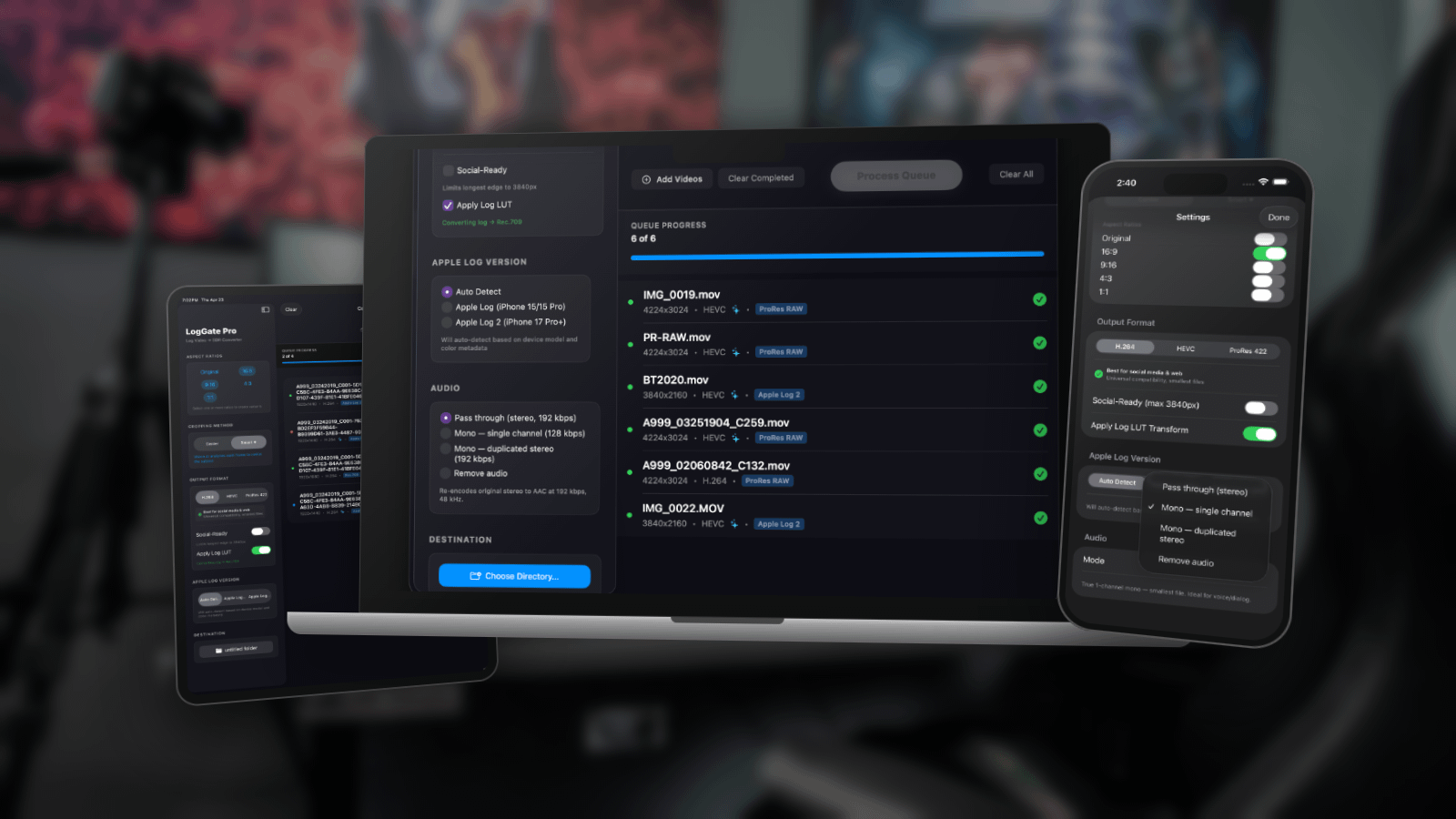
The workflow looks like this:
- Shoot in Apple Log on iPhone 15 Pro or later (ProRes 422 HQ or 4444)
- Open LogGate Pro → select your clips → choose H.265 10-bit or DNxHR as your output
- Batch convert on-device — LogGate Pro keeps the log curve intact and metadata clean
- Transfer the converted files to your Windows PC (AirDrop, cable, or cloud)
- Import into DaVinci Resolve on Windows — no decoder issues, no dropped frames
- Grade normally — your log curve is fully intact, CST from Apple Log works exactly as expected
No proprietary plugins required on the Windows side. No Apple ProRes codec purchase. The heavy lifting happens on the device that already understands ProRes natively.
Common Questions
Do I lose quality when converting from ProRes to H.265?
At 10-bit H.265 with a reasonable bitrate (50 Mbps+), the quality difference in a graded timeline is effectively zero. ProRes is visually lossless, H.265 10-bit at high bitrate is visually lossless for practical purposes. You will not see a difference in your final grade.
Can I just install a ProRes codec on Windows?
Apple does not offer a free Windows ProRes decoder. Third-party options exist but they’re expensive, occasionally unreliable, and don’t solve the batch workflow problem. Converting on-device is faster and more reliable in practice.
What about Apple Log → Rec.709 baking?
Don’t do it. Baking the LUT during export throws away dynamic range you paid for with a $1,000+ camera. Always transcode log-to-log and apply your colour space transform in Resolve. LogGate Pro exports in Apple Log by default — never bakes.
Bottom Line
Apple Log on Windows is a solved problem once you stop fighting the codec. Transcode to a Windows-native 10-bit format before you edit, and your entire workflow becomes friction-free. If you want to do that conversion on your phone before your files even land on your PC, LogGate Pro was built for exactly that.